
Finding the best USB hub shouldn’t feel like a chore. Are you tired of the constant frustration of unplugging your keyboard just to charge your phone? Stop settling for slow data transfer speeds and messy desks. Our guide reveals the ultimate port expansion solutions to transform your workspace into a high-speed powerhouse. Whether you need a portable adapter or a heavy-duty USB-C docking station, we’ve found the perfect fit. Let’s explore the top picks for your setup.
Contents
- Top 7 USB HUB:
- 7. Anker Ultra Slim 4-Port USB 3.0 Hub
- 6. Sabrent 4-Port Powered USB 3.0 Hub
- 5. Hiearcool 7-in-1 USB-C Hub
- 4. Anker 341 USB-C Hub 7-in-1
- 3. Rosonway 7-Port USB 3.2/USB-C Powered Hub
- 2. UGREEN Revodok Pro 210 10-in-1 Dual HDMI
- 1. Sabrent 10-Port 60W USB 3.0 Hub
- Things to Consider Before Buying a USB HUB:
- Self-Powered vs. Bus-Powered Models
- USB-C Multi-Port Adapters vs. Traditional USB-A Hubs
- Understanding USB 3.0, 3.2, and USB4 Transfer Speeds
- Verifying Port Density and Connector Spacing
- Compact Travel Docks vs. Heavy-Duty Desktop Stations
- Integrated Cables vs. Detachable Connection Options
- Inventorying Your Current and Future Peripheral Needs
- Calculating Power Delivery (PD) Requirements for Laptops
- Managing Interference with 2.4GHz Wireless Devices
- Selecting Shielded Cables to Prevent Data Corruption
- Surge Protection and Overcurrent Safeguards
- Thermal Management During High-Speed Data Transfers
- To wrap up
Top 7 USB HUB:
7. Anker Ultra Slim 4-Port USB 3.0 Hub

The greatest affordable hub for 2026 is the Anker Ultra Slim 4-Port USB 3.0 Hub.Just one more port to plug in three devices. It becomes tedious because you’re always switching.A single port turns into four.One thing: all of the ports have 5Gbps USB 3.0. Quick enough to transfer a high-definition video in a matter of seconds—ten times quicker than USB 2.0.Second, it is powered by a bus and comes with a flexible 2-foot wire.There is no driver or adapter. Just plug it in, and it’ll operate with Windows, Linux, or Mac.
And lastly, the 0.4-inch ultra-thin body. Very thin, almost pencil-thin. Melts away in any purse.Cons: can’t charge, doesn’t support USB-C, and may require an additional power adapter for drives that use a lot of juice.Ideal for: everyone in charge of USB-A peripherals, students, and desktop users.No one who needs to charge their device or uses USB-C ports should use this.
6. Sabrent 4-Port Powered USB 3.0 Hub

When it comes to powered desktop hubs, nothing beats the Sabrent HB-UMP3 in 2026.Connecting a hard drive causes bus-powered hubs to shut down. Using a hub that draws power from your laptop port isn’t always the best option for powering devices.That is resolved by the HB-UMP3.First things first: a 5V/2.5A power adaptor is included. Continual power supply to all ports—no power outages, even when drives are in use.
Secondly, each port has its own on/off switch with an LED indicator. Turn off a gadget without taking it out of the socket.Thirdly, all four ports support 5Gbps USB 3.0 and are compatible with both USB 2.0 and earlier versions.Restrictions: Requires a computer with a USB-A connector. No HDMI, no USB-C.Individuals requiring per-port control, users of hard drives, and home office settings are the ideal candidates.Do not use if you require display output or if you are a USB-C user.
5. Hiearcool 7-in-1 USB-C Hub

The top budget USB-C hub for 2026, the Hiearcool7-in-1.Even your brand-new laptop just has one USB-C port, unlike all of your other devices. This is it.That chasm is filled by the Hiearcool. Seven connecting points on a single cable.A 100W pass-through charger and 4K HDMI are the first features. While your laptop charges, you can use one port to mirror or enlarge your display.The second is a pair of USB 3.0 connections, as well as readers for standard and microSD drives. Link disks and retrieve images from the camera all at once.
The third item is an eight-color, 2.4-ounce metal shell. Put it in whatever bag you like; it will go unnoticed until you really need it.Downside: HDMI has a maximum refresh rate of 30Hz, which makes it slightly choppy for fast-paced media. Could not find an Ethernet port.Macbook Air users, students, frequent fliers, and anyone looking to purchase a USB-C device for the first time will benefit the most from this.Users requiring a connected internet connection or 60Hz display output should not use this.
4. Anker 341 USB-C Hub 7-in-1

By 2026, the Anker 341 will have established itself as the go-to mid-range USB-C hub.You can’t charge your laptop while using one of those cheap USB-C converters, and they also overheat and fall over mid-presentation.With the 341, Anker proves that they’ve been in this for a long time.A first: 85W pass-through charging while operating at full capacity. Even when you’re transferring data and using a monitor, your MacBook Pro keeps its battery life up.
The second is a total of five connectors, including four 4K HDMI outputs, two USB-A 3.0 ports, and a specialized USB-C data port.Third, there is an SD and microSD card slot already installed, so there is no need for an additional adapter for artists and photographers.Cons: Just as the Hiearcool, HDMI only supports 30Hz. Not even an Ethernet cable. Compared to its rivals, the cable is shorter.Who it’s best for: Regular Windows and MacBook users looking for dependable brand-name hardware.Those who require 60 Hz, Gigabit Ethernet, or two displays should not use this.
3. Rosonway 7-Port USB 3.2/USB-C Powered Hub

In 2026, the greatest hybrid-powered hub will be the Rosonway 7-Port.It’s a desk full of USB-C solid-state drives, old USB-A drives, a keyboard, and a webcam. Everything can’t be handled at full speed by a single conventional hub.Problem solved by the Rosonway.The first is a quartet of USB-A 3.0 ports, one 10Gbps USB-A 3.2, and two 10Gbps USB-C 3.2. Full speed ahead on seven links, both old and new.Secondly, each port has its own on/off switch with an LED indicator. You may control each gadget separately; tap to wake and hold to power down.
Thirdly, an overcurrent and surge protector power adapter with 24W output. Power is reliably supplied to all seven ports at the same time.Brownouts are not an issue.Some drawbacks include an aluminum body that gets hot when used frequently and the lack of an HDMI port and a laptop charging passthrough.Power users, creators, and home lab setups with varied USB collections are the best candidates.Inappropriate for: those who require power for their laptop’s screen or battery.
2. UGREEN Revodok Pro 210 10-in-1 Dual HDMI
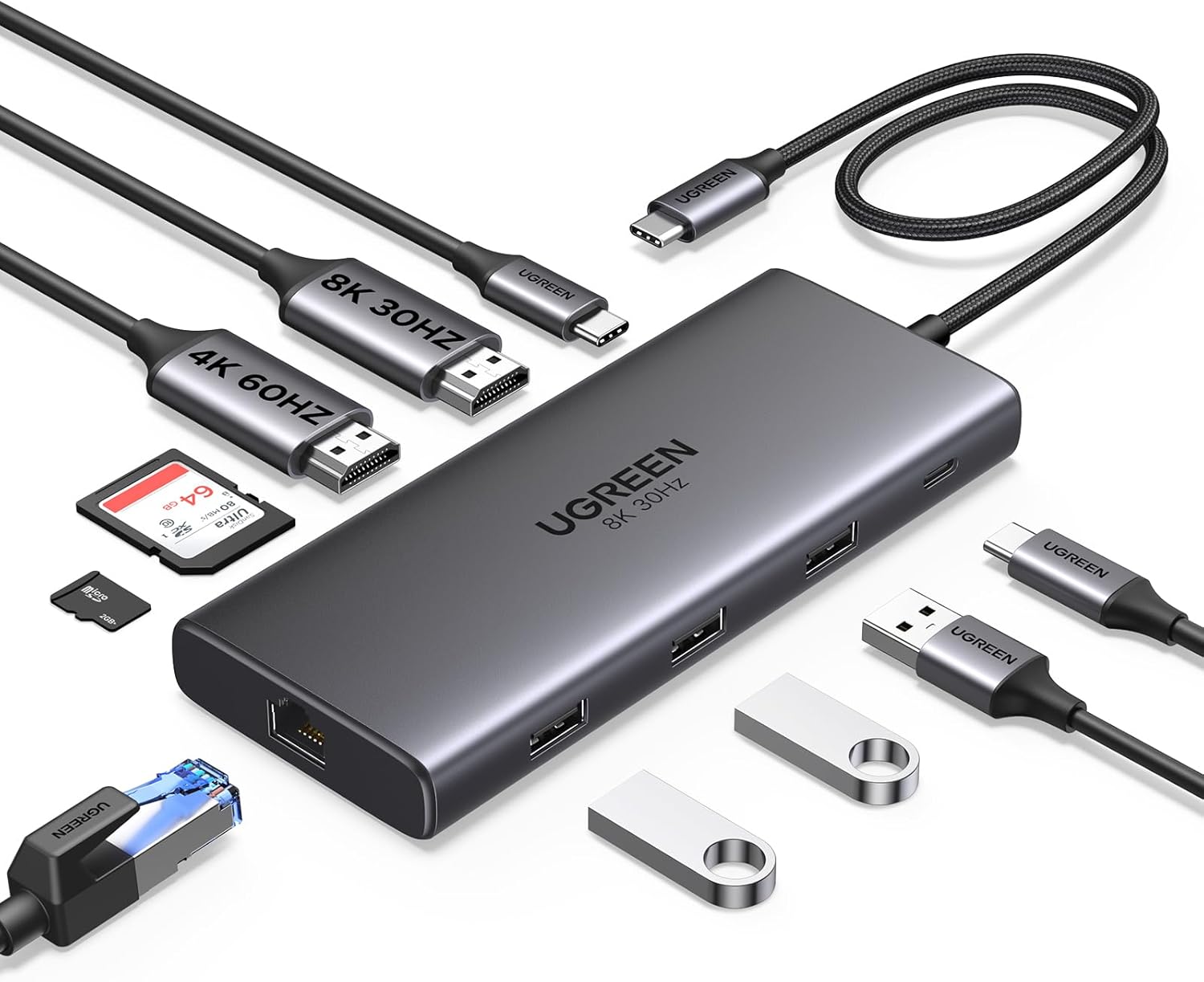
In 2026, the top portable dual-monitor hub will be the UGREEN Revodok Pro.Two external displays for your laptop are required. Each hub reflects the displays—the identical picture, on both screens. You would want two separate displays.That is accomplished via the Revodok Pro.To start, I have two 4K@60Hz HDMIs, each running its own Windows process. This is a genuine dual-monitor setup—two displays, two windows, and no mirroring—that doesn’t require a dock.Secondly, rapid solid-state drives (SSDs) and other high-demand peripherals can coexist with lightning-fast USB-C and USB-A data interfaces.
Thirdly, there is a single-monitor 8K@30Hz option for those times when you may do without more than one display. Nobody else’s hub here can handle 8K.Restrictions: most new Windows laptops are compatible with DisplayPort 1.4, which is necessary for independent twin displays. OS X only mirrors.The ideal setup for professionals, artists, and developers using dual-monitor laptop workstations.Those who require basic expansion or Mac users with separate dual monitors should not use this.
1. Sabrent 10-Port 60W USB 3.0 Hub

One of the best powered desktop hubs is the Sabrent HB-BU10.The ten gadgets. Everything from hard drives to printers, keyboards, mice, webcams, phones, tablets, and flash drives. Too few ports.With the HB-BU10, that is an end.The first is a 60W adaptor that powers ten USB 3.0 ports. With no need for sharing or throttling, all devices enjoy uninterrupted 5Gbps bandwidth and steady power.Secondly, each port on the individual switches has a blue LED indicator. 10 separate connectors, 10 separate controls. Turn off a single gadget without affecting the others.
Thirdly, there are no drivers needed; it is plug-and-play on all three platforms. You can connect disks, printers, cameras, and gaming peripherals to ten ports that activate in an instant.Restrictions: Just USB-A, no USB-C, no HDMI, and no charging for laptops. This is solely a workspace hub.Super users, artists, and DIYers with eight or more USB devices per desk will love this.Do not use if you require a display output, USB-C, or a portable laptop.
Things to Consider Before Buying a USB HUB:
Most users overlook key features when purchasing a USB hub, which can affect performance and usability. Understanding power requirements, data transfer speeds, and compatibility with devices is crucial for making an informed choice. This guide highlights important factors to evaluate before your purchase.
Self-Powered vs. Bus-Powered Models
Choosing between self-powered and bus-powered USB hubs depends on your power needs. Self-powered models are ideal for devices requiring more energy, while bus-powered models are convenient for lighter usage. Evaluate your devices to determine which type best suits your requirements.
USB-C Multi-Port Adapters vs. Traditional USB-A Hubs
USB-C multi-port adapters offer versatility, including HDMI and Ethernet ports, unlike traditional USB-A hubs. They are particularly beneficial for modern devices, providing faster data transfer and charging capabilities. Your selection should be based on device compatibility and connectivity needs.
The comparison of USB-C multi-port adapters and traditional USB-A hubs highlights functionality differences. USB-C models often support higher data transfer speeds and additional features, making them suitable for users with newer technology. Traditional USB-A hubs remain relevant for legacy devices, but the trend is shifting toward USB-C for its efficiency and multi-use capabilities.
Understanding USB 3.0, 3.2, and USB4 Transfer Speeds
Familiarize yourself with the different USB standards to maximize transfer speeds. USB 3.0 offers up to 5 Gbps, while USB 3.2 can reach up to 20 Gbps. USB4 significantly enhances data rates, providing potential speeds of up to 40 Gbps, making it a superior choice for high-demand tasks.
Verifying Port Density and Connector Spacing
Assessing port density and connector spacing is vital for usability. A hub with adequate spacing allows for multiple devices to connect without blocking adjacent ports. Look for hubs that offer both variety and accessibility to suit your setup.
Choosing a hub with the right port density and connector spacing ensures each device remains accessible. Evaluating the physical arrangement of ports can prevent frustration when connecting multiple gadgets. Avoid hubs that cluster ports too closely, as this may hinder your ability to utilize larger connectors or plugs. A well-designed layout enhances the user experience in any workspace.
Compact Travel Docks vs. Heavy-Duty Desktop Stations
Compact travel docks are excellent for portability, allowing you to easily connect devices on the go, while heavy-duty desktop stations offer more ports and power for extensive setups but require dedicated desk space.
Integrated Cables vs. Detachable Connection Options
Integrated cables provide a tidy, all-in-one solution, eliminating the risk of losing parts, whereas detachable connection options offer flexibility to replace or upgrade cables as needed.
Choosing between integrated cables and detachable connections depends on your priorities. Integrated cables create a streamlined look and convenience but can limit flexibility if a cable malfunctions. On the other hand, a detachable option allows you to customize your setup with different cable lengths or types, enhancing adaptability for various devices and usage scenarios.
Inventorying Your Current and Future Peripheral Needs
Assess your existing devices alongside potential future purchases. Identify which peripherals, like keyboards, mice, and external drives, you currently use, and consider any additional devices you might acquire. This strategy will guide you in selecting a hub with the right number and type of ports.
Calculating Power Delivery (PD) Requirements for Laptops
Evaluating your laptop’s power needs helps in selecting a compatible USB hub. Check the wattage specifications of your device to determine the PD rating required for efficient charging while using other peripherals.
Power Delivery standards define how much wattage a USB hub can deliver. Check your laptop’s specifications to find its maximum charging power, generally indicated in watts. Selecting a hub that matches or exceeds this power will ensure your laptop charges effectively even while connected to additional devices. Confirm compatibility with USB-C if your laptop supports it to optimize charging speeds.
Managing Interference with 2.4GHz Wireless Devices
To minimize interference, position your USB hub away from 2.4GHz wireless devices like routers and microwaves. This distance helps reduce signal noise, ensuring stable connections. Maintaining a clear line of sight can enhance communication between devices.
Selecting Shielded Cables to Prevent Data Corruption
Choosing shielded cables can significantly reduce the risk of data corruption. They offer protection against electromagnetic interference, leading to more reliable data transfer. Opt for cables that provide excellent shielding for optimal results.
Investing in quality shielded cables creates a protective barrier against noise that can disrupt data integrity. When choosing cables, check for materials that provide effective shielding, such as foil or braided designs. High-quality connectors also play a role in maintaining a strong signal, ensuring that your data transmission remains consistent and error-free.
Surge Protection and Overcurrent Safeguards
Choosing a hub with built-in surge protection and overcurrent safeguards can prevent damage to connected devices. These features detect abnormal electrical activity and automatically cut off power, protecting your electronics from potential hazards that could compromise their integrity.
Thermal Management During High-Speed Data Transfers
Effective thermal management is necessary when transferring data at high speeds. Insufficient cooling can lead to overheating, which affects performance and longevity. Select a hub with adequate ventilation or heat dissipation features to ensure reliable operation during intensive tasks.
Optimal thermal management strategies may include incorporating aluminum heat sinks or fan systems in the hub design. These mechanisms facilitate heat dissipation and maintain appropriate operating temperatures, ensuring that devices function efficiently without risk of overheating. Checking user reviews can reveal how well specific models handle heat during high-speed data transfers.
To wrap up
To wrap up, consider your specific needs, the number of ports, data transfer speeds, and power supply options before investing in a USB hub. Assess compatibility with your devices and look for reputable brands to ensure reliability and performance. This approach will help you choose a hub that meets your requirements effectively.
Leave a Reply